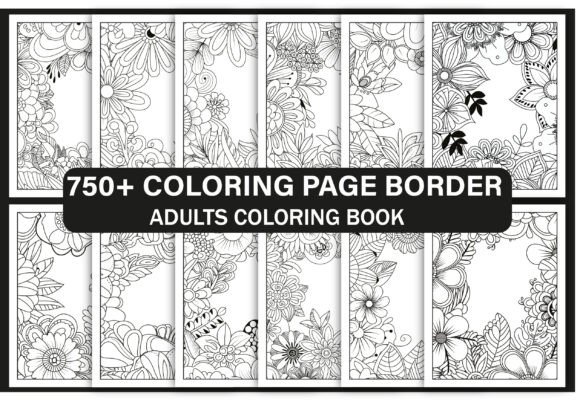
650 Borders Coloring Page Bundle
The 650 Borders Coloring Page Bundle is a purpose-built digital asset designed for creators who need high-quality, production-ready border designs—fast. It’s not just another collection of clipart or generic frames. This bundle delivers consistent, scalable, and stylistically cohesive borders optimized for real-world use: Amazon KDP interiors, print-on-demand (POD) journals, adult coloring books, book cover accents, planner inserts, educational handouts, and even branded merchandise. Its value lies in how it integrates into existing workflows—not as a standalone novelty, but as a functional component that reduces friction between idea and output.
Where It Fits in Your Creative or Business Workflow
Think of the 650 Borders Coloring Page Bundle as infrastructure—not the headline, but the foundation that supports faster iteration and cleaner execution. For example:
- Before publishing a coloring book on Amazon KDP, you’re sourcing interior assets, aligning layout consistency, and ensuring all pages meet platform specs. This bundle gives you 650 ready-to-place borders—each sized to 8.5″ × 11″, high-resolution, and pre-formatted for letter-size printing. No resizing, no cropping, no guessing whether margins will hold up at scale.
- During cover design, borders often serve as subtle framing devices—softening edges, adding thematic texture (e.g., botanical, geometric, or mandala-inspired), or reinforcing genre cues without overwhelming typography. With editable EPS files included, you can adjust stroke weight, color, or layer depth directly in Illustrator or Affinity Designer—then export cleanly for cover mockups or print proofs.
- After launching a POD product, customer feedback may reveal demand for themed expansions—say, floral-only or Celtic-line variants. Because this bundle includes both PNG and EPS formats, you can quickly isolate motifs, recolor elements, or combine borders with original illustrations to create limited-edition spin-offs—all without outsourcing or re-hiring a designer.
It’s also relevant in non-publishing contexts. Educators building printable worksheets use borders to signal section breaks or elevate visual hierarchy. Freelance designers preparing client deliverables include these files in brand kits so clients can self-serve minor layout updates. Bloggers embedding downloadable resources in lead magnets use the JPEG versions for immediate web display—then follow up with the PDF for print fidelity.
Compatibility and Format Strategy
Format diversity isn’t about redundancy—it’s about workflow alignment. Each file type serves a distinct role:
- PNG files are transparent-background, raster-based, and ideal for quick drag-and-drop into Canva, PowerPoint, or Google Docs. Use them when speed matters more than scalability—like assembling a social media carousel or previewing layouts before finalizing a book interior.
- JPEG files offer universal compatibility and smaller file sizes. They work well for email attachments, client previews, or low-bandwidth environments where vector editing isn’t required.
- EPS files are vector-based and fully editable in Adobe Illustrator, CorelDRAW, or Inkscape. This means you can change line thickness, convert strokes to paths, extract individual petals or vines, or scale infinitely without quality loss. If your process involves customizing motifs for branding or adapting to different trim sizes (e.g., shifting from 6″ × 9″ to A5), EPS is your starting point.
- PDF files are print-optimized and pre-assembled. The 7 final PDFs included are organized by theme or complexity—ideal for batch uploading to KDP or handing off to a printer. No need to rebuild page sequences or verify bleed settings manually.
This layered format strategy eliminates bottlenecks. You don’t need to choose one “right” version—you use the right version for the task at hand. That flexibility translates directly into time saved, fewer revision rounds, and tighter control over visual consistency across multiple products.
Practical Integration Tips
To get the most out of the 650 Borders Coloring Page Bundle, start with organization—not aesthetics. Before opening any file:
- Create a naming convention that reflects usage: e.g., border_floral_vine_thin_042_EPS instead of IMG_1234.eps. This pays off when searching across hundreds of files in Adobe Bridge or your DAM system.
- Batch-test resolution and scaling in your primary layout tool. Import one EPS and one PNG side-by-side into InDesign or Affinity Publisher. Check how each renders at 100%, 150%, and 200% zoom—and confirm no anti-aliasing artifacts appear on fine linework. High-resolution doesn’t guarantee clean output if your software applies unintended smoothing.
- Validate color mode before final export. All files are RGB by default, which works for screen and most POD providers—but if you’re sending to offset printers or specialty vendors, convert EPS and PDFs to CMYK *after* final edits, not before. Premature conversion can shift contrast and line clarity.
- Use borders as structural anchors, not just decoration. Align chapter dividers, section headers, or answer boxes to the same border baseline across pages. That small consistency cue improves readability and signals professionalism—even if readers don’t consciously notice it.
Long-Term Usability and Quality Control
Unlike single-use graphics, this bundle is built for reuse across projects, years, and platforms. But longevity depends on how you manage it. Keep these points in mind:
- Version control matters. If you edit an EPS file (e.g., recoloring a border for a new product line), save the modified version with a clear suffix—_v2_brandblue—and retain the original untouched. Overwriting base files erodes future flexibility.
- Test print samples early. Even with high-resolution files, paper stock, ink density, and printer calibration affect line visibility. Run a 5-page test on your target paper (e.g., 120 gsm matte) before committing to full runs.
- Document usage rights clearly if sharing with collaborators. The bundle permits commercial use—including resale on Amazon KDP—but does not grant trademark rights to any embedded motif names or stylized terms. Avoid using border elements as logos unless you’ve modified them substantially.
- Archive backups across locations. Store master EPS files on encrypted cloud storage *and* an external drive. Raster versions (PNG/JPEG) can live in lighter-weight folders—but never rely solely on one copy.
Finally, consider how this bundle fits into your broader asset ecosystem. Pair it with complementary resources—like a set of coordinating floral icons or a monoline font pack—to build repeatable design systems. When borders, typography, and iconography share visual DNA, your output feels intentional, not assembled.
Real-World Implementation Example
A freelance illustrator launching her first adult coloring book used the 650 Borders Coloring Page Bundle to accelerate three phases:
First, she selected 42 borders from the floral subset to anchor each double-page spread—ensuring every illustration had a consistent frame that echoed the book’s botanical theme. She edited the EPS files to unify stroke width and adjusted spacing so borders didn’t compete with central artwork.
Second, she exported those same 42 as PNGs to drop into Instagram carousels and Pinterest pins—using the transparency to overlay text cleanly without background clashes.
Third, after launch, she repurposed 12 simpler borders (thin line, symmetrical) into printable weekly planner inserts—adding date fields and checkboxes in Canva. That mini-product launched as a low-effort, high-margin add-on within 48 hours of the main book going live.
No new design work. No licensing hurdles. Just strategic, format-aware reuse—rooted in preparation, not improvisation.